
Find the class you wish to register for here: LSC Course Listings
Note: For MnDOT Technical Certification classes, you must have a Tech ID prior to registering. Please see instructions on the MnDOT Technical Certification Program website
Once you find the class you would like to register for, click the Add to Cart button on the right. Repeat for any additional classes you would like to register for.

Once you have filled your cart, click View Cart at the top right of the screen.

Here you may adjust quantities or remove classes from your cart before checkout.
If you are not already logged into your account, you will be prompted to do so before proceeding to checkout.
If you do not have an existing account, you will be prompted to create a new account during the checkout process. How to Create Your LSC Registration Account.
During checkout, you will need to Select Participant for each class in your cart.
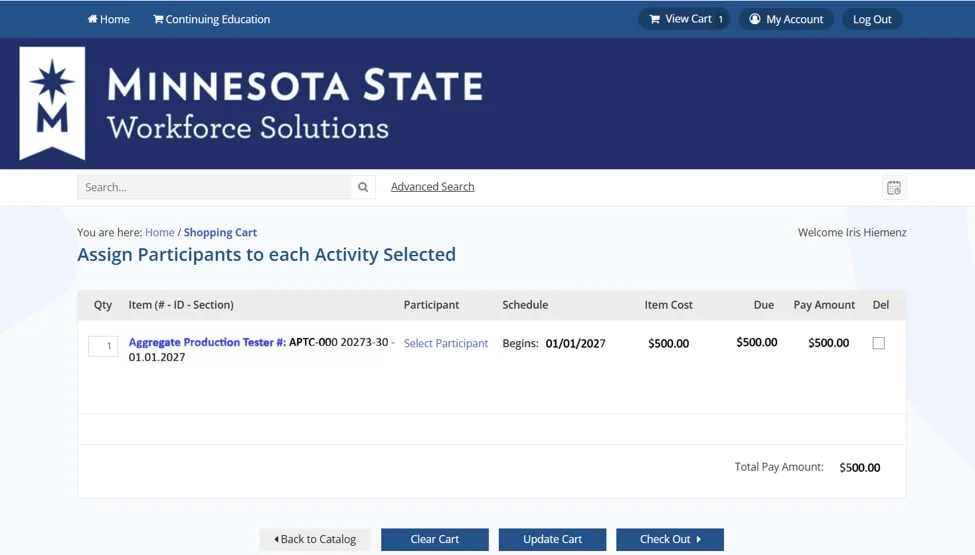
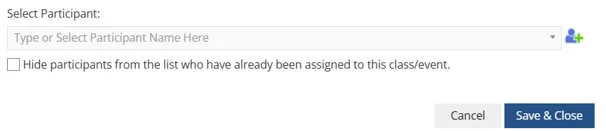
Click the blue Select Participant link. A popup menu will appear. Select the participant for each class from the dropdown menu. If you do not see your participant listed, click the green plus button next to the dropdown menu to add a new participant. Click Save & Close when completed.
Once participants have been selected for all classes in your cart, click the Check Out button at the bottom of the screen.
Follow the prompts for any additional information needed, and follow the instructions for payment to complete your registrations. If paying with a purchase order, please refer to Purchase Order Payment Instructions.
Upon successful registration, you should receive a confirmation email for each registration. If you do not receive this email, please contact us:
Tips for registration success:
- Log in or create your account prior to selecting classes for registration. This will save you significant time in the checkout process. How to Create Your LSC Registration Account.
- Update any participant information or add new participants to your account prior to registration.
- Have your purchase order ready. You will need to upload a pdf of your purchase order at checkout. Purchase Order Payment Instructions.
- Do not overload your cart! During busy registration times, many people may be competing for seats in the same class, which can cause issues at checkout. If you have multiple registrations to make, break them down into smaller groups. You may check out with your same purchase order as many times as needed to complete your registrations.