
Use the Wait List to tell us you are waiting! Once you are on a Wait List for a course, you will get email updates from LSC staff when there are new openings in an existing class or if a whole new class has been opened.
Getting on a Wait List does not put you in line for a seat or promise you will get into a class, but it does help you get information you need to register if and when there are openings.
How it works for you:
- Register on a course Wait List for yourself or someone else:
- If there are no classes at all open for the course
- If the specific class you really want is full and you have registered for another class instead
- Watch for LSC Wait List emails that will be sent to people on the list whenever there are updates.
- If you see in the Wait List email that there is an opening for a class that you are interested in, return to the registration site and register for it.
- If you are not already registered for a class, do the new registration directly yourself
- If you are switching from one class to another (e.g., GBTC-107 to GBTC-108), contact LSC staff to cancel out of one class and get registered for the other
- Remove yourself from the Wait List when you no longer need those updates.
Instructions:
Find the Wait List you wish to register for here: LSC Course Listings
Once you find the Wait List you would like to register for, click the Add to Cart button on the right. Repeat for any additional Wait Lists you would like to register for.

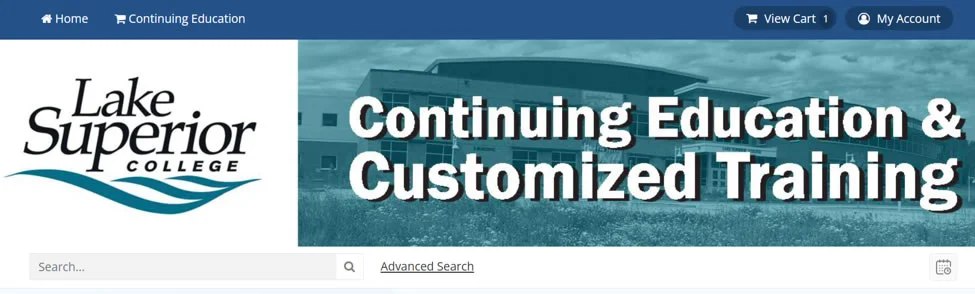
Once you have finished adding your Wait List items to your cart, click View Cart at the top right of the screen.
Here you may adjust quantities in your cart before checkout.
If you are not already logged into your account, you will be prompted to do so before proceeding to checkout.
If you do not have an existing account, you will be prompted to create a new account during the checkout process. How to Create Your LSC Registration Account.
During checkout, you will need to Select Participant for each Wait List item in your cart.
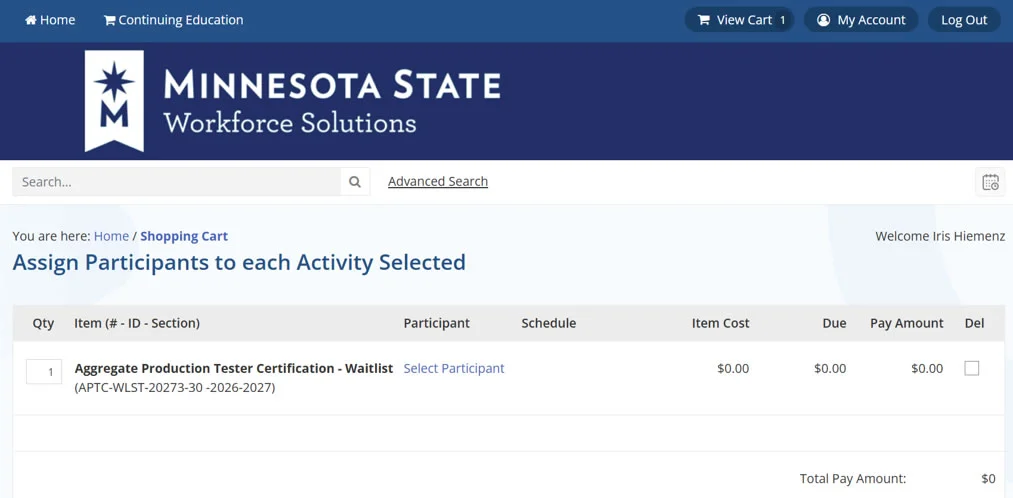
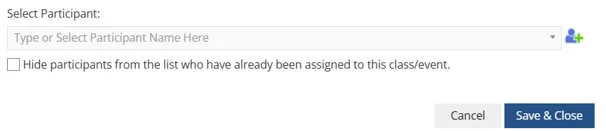
Click the blue Select Participant link. A popup menu will appear. Select the participant for each Wait List item from the dropdown menu. If you do not see your participant listed, click the green plus button next to the dropdown menu to add a new participant. Click Save & Close when completed.
Once participants have been selected for all Wait List items, click the Check Out button at the bottom of the screen.
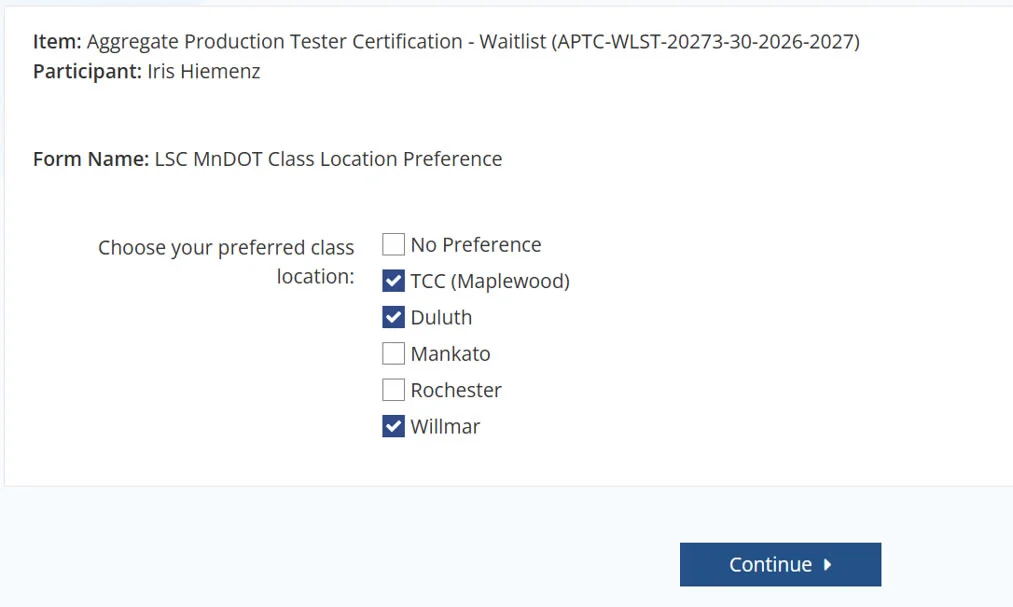
You will be prompted to respond to the following questions for each participant. Please make every effort to answer these questions, as the answers will determine the need for additional classes, and will allow us to better communicate class updates, based on your specific needs.
Question 1: Choose your preferred class location (select all that apply)
Question 2: Are you already registered for a class that you are hoping to change? (Select Yes or No) If Yes, which class are you registered for? (Type in your response)
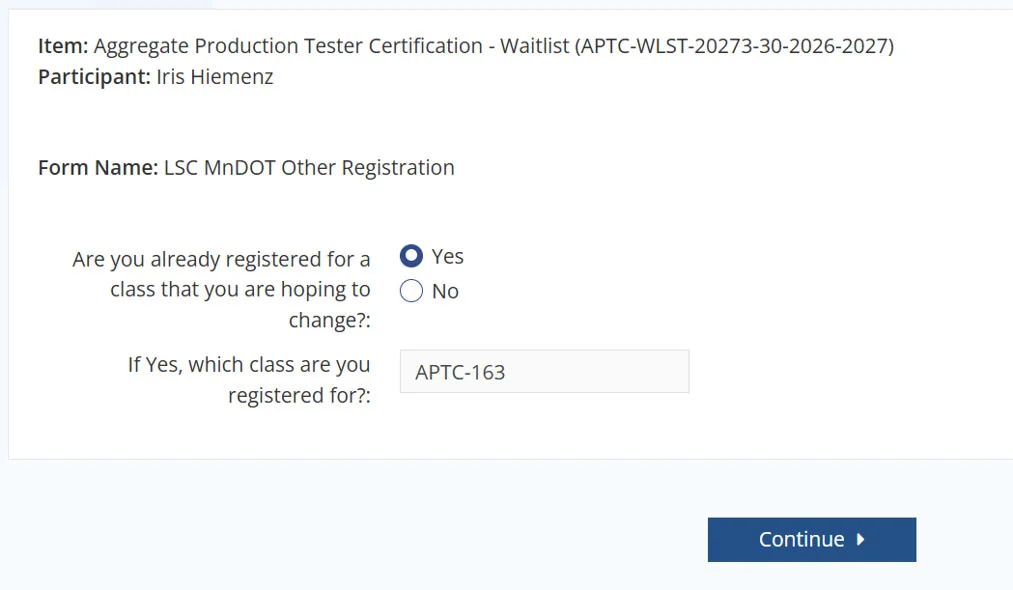
Once you have provided responses for each waitlist participant, you may complete your registrations through the checkout. There is no cost for the Wait List.
Upon successful registration, you should receive a confirmation email for each Wait List registration. If you do not receive this email, please contact us: